Part 3: Manage workflow executions
As you run and re-run pipelines, you accumulate execution history and old work/ directories.
In Part 1 you already used -resume to skip work that was already done.
Here you'll learn how to generate reports about a run, inspect the history of past runs with nextflow log, and delete old work directories you no longer need with nextflow clean.
1. Generate pipeline reports
Nextflow can generate several kinds of reports about a run, each added with its own -with-* flag: an execution report (-with-report), an execution timeline (-with-timeline), a task trace file (-with-trace), and a workflow diagram (-with-dag).
We'll generate the first two here; see Execution reports in the Nextflow reference for the rest.
1.1. Generate an execution report
Add -with-report to any nextflow run command to generate an HTML report after the pipeline completes:
Command output
N E X T F L O W   ~  version 26.04.4

Launching `main.nf` [intergalactic_dalembert] revision: ce74f81996

executor >  local (8)
[34/23f10f] sayHello (2)       | 3 of 3 ✔
[af/cab69d] convertToUpper (3) | 3 of 3 ✔
[9e/d73afb] collectGreetings   | 1 of 1 ✔
[3c/392db0] cowpy              | 1 of 1 ✔

Outputs:

  /workspaces/training/nextflow-run/results

  first_output:
    - batch/intermediates/Bonjour-output.txt
    - batch/intermediates/Hello-output.txt
    - batch/intermediates/Hola-output.txt

  uppercased:
    - batch/intermediates/UPPER-Bonjour-output.txt
    - batch/intermediates/UPPER-Hello-output.txt
    - batch/intermediates/UPPER-Hola-output.txt

  collected: batch/intermediates/COLLECTED-batch-output.txt

  batch_report: batch/batch-report.txt

  cowpy_art: batch/cowpy-COLLECTED-batch-output.txt
Nextflow writes the report to a file named report-<timestamp>.html in the working directory.
Open it in a browser to see an execution summary, a table of every task with its status and runtime, and resource usage charts broken down by process.
The Tasks tab lists every task the pipeline ran, with its process name, status, and resource usage:
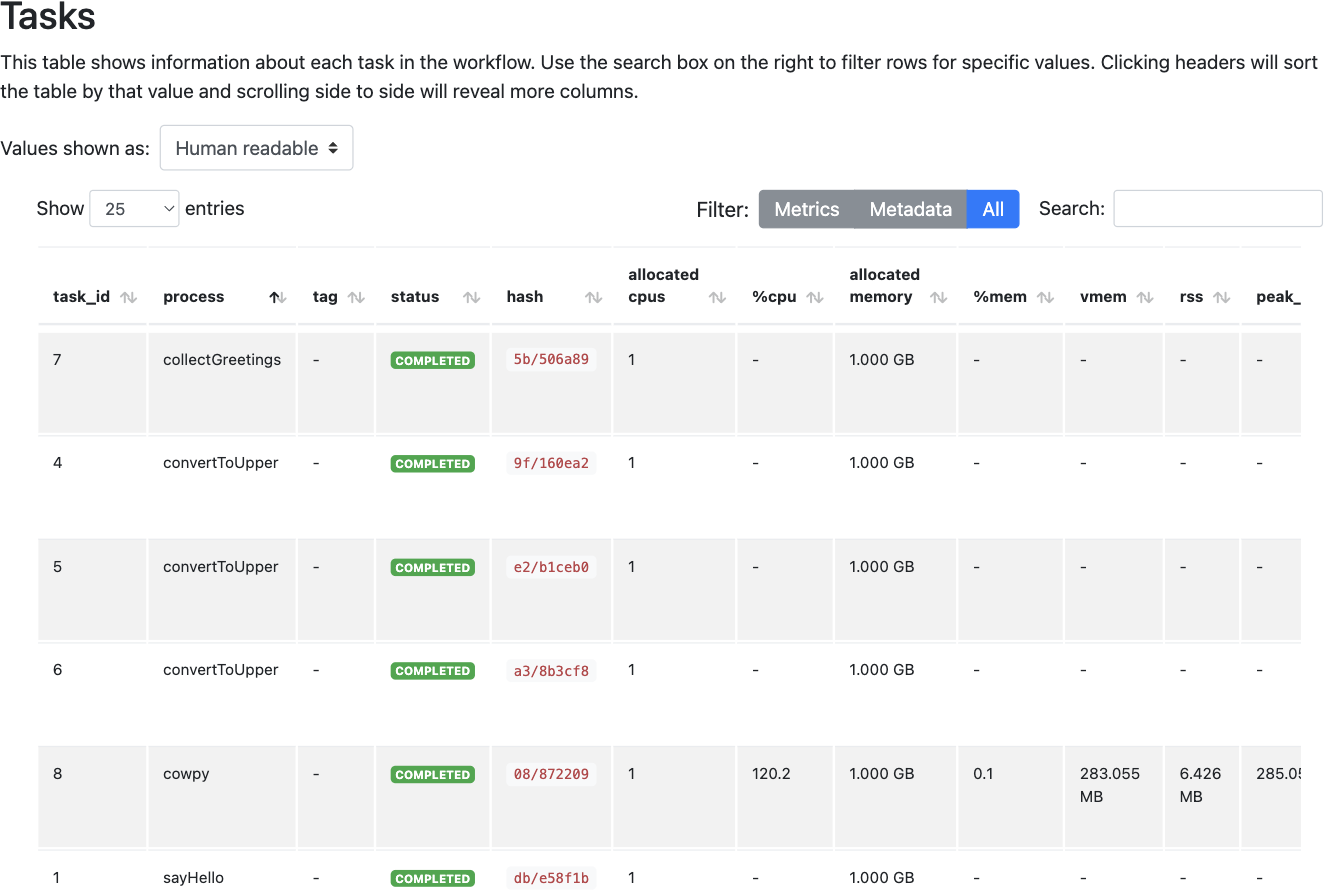
The report is especially useful when a pipeline takes longer than expected or a task fails: the task table shows exactly where time was spent and which tasks succeeded or failed.
1.2. Generate an execution timeline
Add -with-timeline to a run to get a Gantt-chart-style view of when each task ran:
Command output
N E X T F L O W   ~  version 26.04.4

Launching `main.nf` [jolly_noyce] revision: ce74f81996

executor >  local (8)
[ad/e92ef3] sayHello (3)       | 3 of 3 ✔
[2a/df8a8d] convertToUpper (2) | 3 of 3 ✔
[be/7fb72a] collectGreetings   | 1 of 1 ✔
[63/dc9bd6] cowpy              | 1 of 1 ✔

Outputs:

  /workspaces/training/nextflow-run/results

  first_output:
    - batch/intermediates/Bonjour-output.txt
    - batch/intermediates/Hello-output.txt
    - batch/intermediates/Hola-output.txt

  uppercased:
    - batch/intermediates/UPPER-Bonjour-output.txt
    - batch/intermediates/UPPER-Hello-output.txt
    - batch/intermediates/UPPER-Hola-output.txt

  collected: batch/intermediates/COLLECTED-batch-output.txt

  batch_report: batch/batch-report.txt

  cowpy_art: batch/cowpy-COLLECTED-batch-output.txt
Nextflow writes the timeline to a file named timeline-<timestamp>.html.
Open it in a browser to see a bar for every task, positioned and sized by when it ran and how long it took:
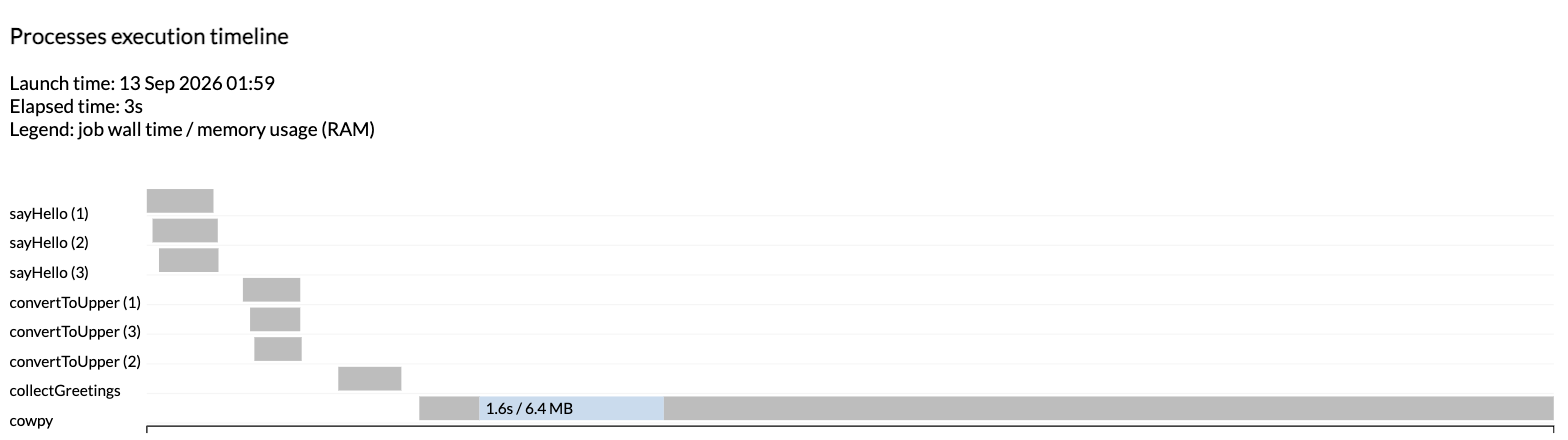
The timeline makes the fan-out-then-fan-in shape from Part 1 visible at a glance: the three sayHello tasks run in parallel, then the three convertToUpper tasks, then collectGreetings and cowpy run one after the other since each depends on everything before it.
Takeaway
You know how to generate an HTML execution report with -with-report and an execution timeline with -with-timeline, and where to look for the other report types Nextflow supports.
What's next?
Learn how to inspect the history of past runs.
2. Inspect the log of past executions
Whether you're developing a pipeline or running it in production, at some point you'll need to look up information about past runs.
2.1. The history file
Every time you launch a Nextflow workflow, a line gets written to a log file called history, under a hidden directory called .nextflow in the current working directory.
File contents
Each line gives you the timestamp, duration, run name, status, revision ID, session ID, and full command line for a run launched from this directory.
Look at the last two lines: they're two separate invocations (one plain, one with -resume) of the exact same command, and they share the same session ID.
The session ID only changes when you launch a genuinely new run; using -resume keeps it, which is how Nextflow knows which cache to reuse.
2.2. Use nextflow log for a friendlier view
Reading the raw history file works, but nextflow log formats the same information with a header:
Command output
Nextflow groups the caching information it uses for -resume under .nextflow/cache, keyed by session ID.
That's why looking up the right run name or session ID here is the first step whenever you need to investigate or clean up a past execution.
Takeaway
You know where Nextflow records the history of past runs, and how to inspect it with nextflow log.
What's next?
Learn how to remove old work directories you no longer need.
3. Delete older work directories
Every run leaves its task directories behind under work/, even after you've copied the outputs you care about to results/.
Run enough pipelines during development and those subdirectories add up, so Nextflow provides nextflow clean to remove the ones you no longer need.
3.1. Determine deletion criteria
nextflow clean supports several ways to select what to remove; see the reference documentation for the full list.
Here you'll delete everything from runs before a given run, using its run name.
Look up the most recent run you want to keep using nextflow log; in the example from 2.2 that's elegant_panini, the last plain run before the -resume one.
The run name is the machine-generated two-part string shown in the Launching (...) console line, or in the RUN NAME column of nextflow log.
3.2. Do a dry run
Add -n first to check what a given command would delete without actually deleting anything:
Command output
Would remove /workspaces/training/nextflow-run/work/e5/9ec3fe24deb5d1ffa478dff5e5e1d4
Would remove /workspaces/training/nextflow-run/work/75/36b1ece86b213c331852d0a3dc659b
Would remove /workspaces/training/nextflow-run/work/be/8157808f28699259b5ff37e4bf9f72
Would remove /workspaces/training/nextflow-run/work/f3/d828b7ba6b315eb08e0f96168119f5
Would remove /workspaces/training/nextflow-run/work/94/7a2d7ef67d81b6e66430f300816698
Would remove /workspaces/training/nextflow-run/work/eb/e37c5c8638c45916de3d9794d6d22f
Would remove /workspaces/training/nextflow-run/work/3f/f56a705a6370f6c615aff22d3f240a
Would remove /workspaces/training/nextflow-run/work/25/4922fa35ba2c6087777ddce20e9f2f
Would remove /workspaces/training/nextflow-run/work/a4/2de7bcc2f8fc974261f7280c1480f7
Would remove /workspaces/training/nextflow-run/work/48/8c49bded446d4fcb78c8125318c5e3
Would remove /workspaces/training/nextflow-run/work/8e/c9834a9bdd7c21de2991d959201a9d
Would remove /workspaces/training/nextflow-run/work/d5/a9055dc8c817c6c1f436494685955c
Would remove /workspaces/training/nextflow-run/work/27/9473df9e55e35c8869d9571b480926
Would remove /workspaces/training/nextflow-run/work/d3/ebc066e1d844232b9f5ee0a7d87464
Would remove /workspaces/training/nextflow-run/work/91/17ef1815ed06b8f177d0135d8ef0dc
Would remove /workspaces/training/nextflow-run/work/12/0443f9fcff27a552d4bc73aaedf24a
That's 16 task directories: the 8 tasks from the turkey run plus the 8 from the tux run, exactly as many as you'd expect for two full runs of this four-process pipeline.
The elegant_panini run itself, and the cached tasks the -resume run reused from it, are left alone.
Your output will list different directory names, and how many lines you get depends on how many runs you've done; if you don't see any lines, either the run name doesn't match one in your log, or there's nothing to delete before it.
3.3. Proceed with deletion
Once the dry run looks right, re-run the same command with -f instead of -n:
Command output
Removed /workspaces/training/nextflow-run/work/e5/9ec3fe24deb5d1ffa478dff5e5e1d4
Removed /workspaces/training/nextflow-run/work/75/36b1ece86b213c331852d0a3dc659b
Removed /workspaces/training/nextflow-run/work/be/8157808f28699259b5ff37e4bf9f72
Removed /workspaces/training/nextflow-run/work/f3/d828b7ba6b315eb08e0f96168119f5
Removed /workspaces/training/nextflow-run/work/94/7a2d7ef67d81b6e66430f300816698
Removed /workspaces/training/nextflow-run/work/eb/e37c5c8638c45916de3d9794d6d22f
Removed /workspaces/training/nextflow-run/work/3f/f56a705a6370f6c615aff22d3f240a
Removed /workspaces/training/nextflow-run/work/25/4922fa35ba2c6087777ddce20e9f2f
Removed /workspaces/training/nextflow-run/work/a4/2de7bcc2f8fc974261f7280c1480f7
Removed /workspaces/training/nextflow-run/work/48/8c49bded446d4fcb78c8125318c5e3
Removed /workspaces/training/nextflow-run/work/8e/c9834a9bdd7c21de2991d959201a9d
Removed /workspaces/training/nextflow-run/work/d5/a9055dc8c817c6c1f436494685955c
Removed /workspaces/training/nextflow-run/work/27/9473df9e55e35c8869d9571b480926
Removed /workspaces/training/nextflow-run/work/d3/ebc066e1d844232b9f5ee0a7d87464
Removed /workspaces/training/nextflow-run/work/91/17ef1815ed06b8f177d0135d8ef0dc
Removed /workspaces/training/nextflow-run/work/12/0443f9fcff27a552d4bc73aaedf24a
nextflow clean empties the task directories but leaves the two-character parent directories (like e5/) in place.
Warning
Deleting work directories from past runs removes them from Nextflow's cache and deletes any outputs stored only there.
That breaks Nextflow's ability to resume execution without re-running the corresponding processes, so only clean up runs you're confident you won't need to resume from.
This is also why it's worth publishing anything you care about to results/ with mode 'copy' rather than relying on the work/ directory or a symlink publish mode.
Takeaway
You know how to remove old work directories with nextflow clean, and why doing so trades away the ability to resume from those runs.
What's next?
Learn how to run pipelines directly from remote repositories such as GitHub in Part 4.
Summary
In this part you learned to:
- Generate an HTML execution report with
-with-reportand an execution timeline with-with-timeline - Inspect the history of past runs with
nextflow log - Remove old work directories with
nextflow clean, and understand the resume trade-off that comes with it